
![How to Install Any Claude Skill From GitHub [Step-by-step] - Beginner Tutorial](/_astro/How%20to%20Install%20Any%20Claude%20Skill%20From%20GitHub%20_Step-by-step_%20-%20Beginner%20Tutorial.Cgks_FcS_1swru6.webp)
.Bktem256_23EEnI.webp)
.rrgOIsSz_Z2n0to0.webp)

Do you want to show only selected variant images on your Shopify store? In this tutorial, we’ll show you how to do just that using the Debut theme. This is a great way to highlight your most popular items or featured products. Let’s get started!
Show Only Selected Variant Images
Add Code in Theme.liquid File – First Step
Add following code below <head> in “Theme.liquid” file
<script src="https://ajax.googleapis.com/ajax/libs/jquery/3.5.1/jquery.min.js"></script>Add Code in Product-template.liquid – Second Step:
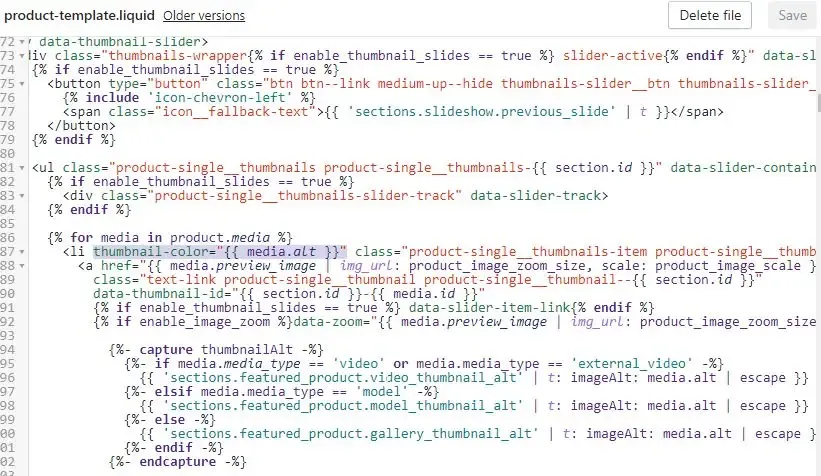
Add thumbnail-color=”{{ media.alt }}” as shown in the screenshot below:
Add Alt Text on All Product Media Gallery – Third Step:
Now the second step is to Alt Text as per the color variation of your product.
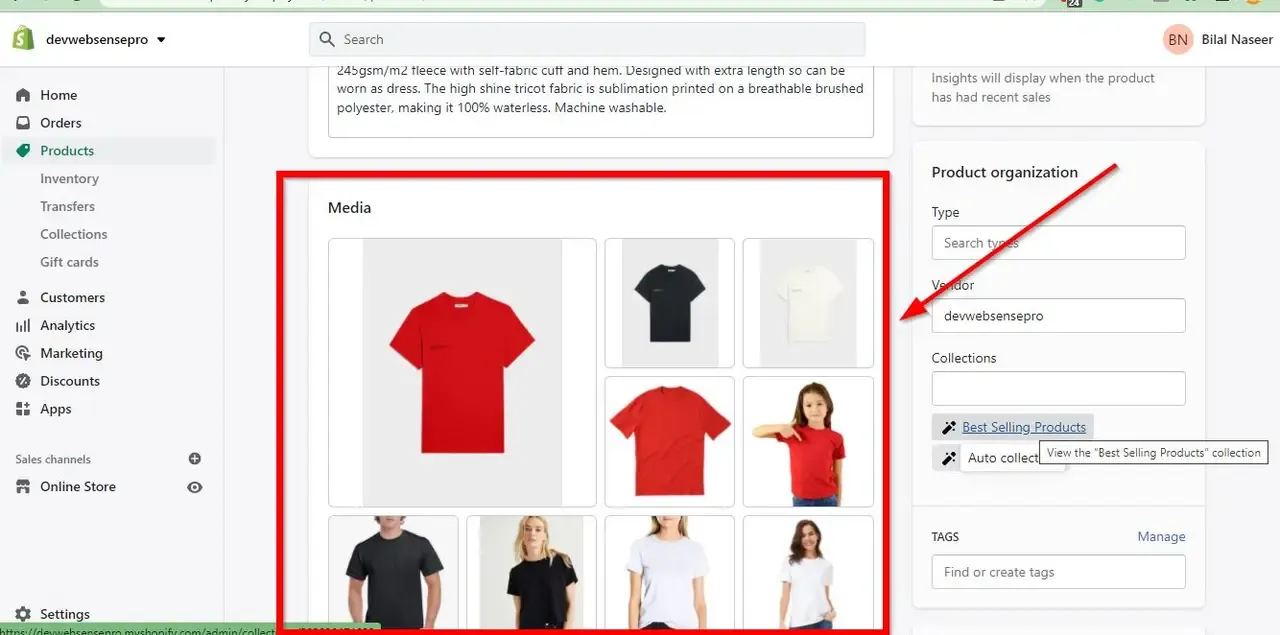
Dashboard -> Products -> Edit Product
On the Edit Product screen you will see the Media section just like the screenshot below:
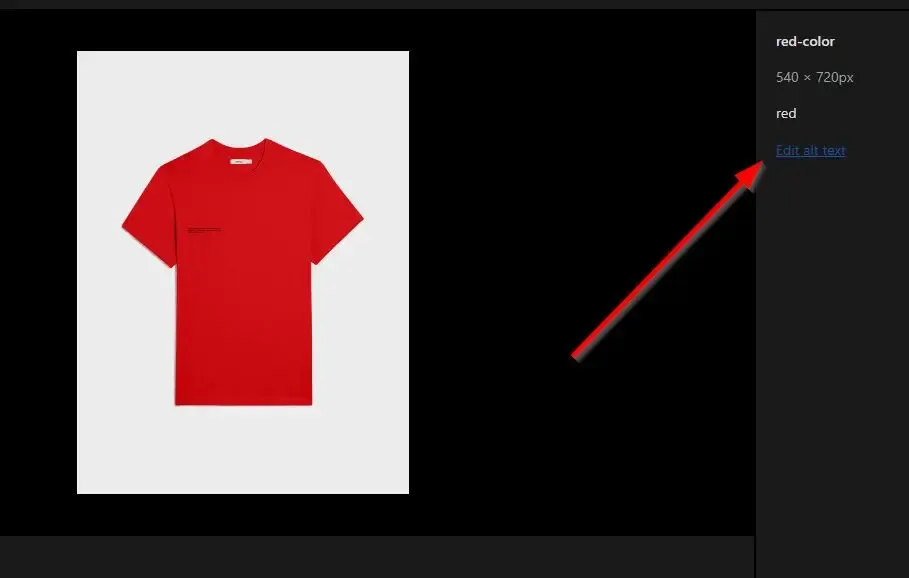
Click on all the media images and add Alt Text as per the screenshot below:
Add JS Code – Fourth Step:
Now edit “theme.js” file and add this._filterThumbnails(variant); on line number 766. After adding this code add following JS function in “theme.js” file on line number 786:
 _filterThumbnails: function(variant) {


      $('[thumbnail-color]').hide();

if (variant.featured_image != null && variant.featured_image.alt != null) {

  var selected_color = variant.featured_image.alt;
  var thumbnail_selector = '[thumbnail-color="' + selected_color + '"]';

  $(thumbnail_selector).show();

}
else {
$('[thumbnail-color]').show();
}

},
Make sure to include jQuery on your Shopify theme. Once done you should be able to see only selected variant images.