
![How to Install Any Claude Skill From GitHub [Step-by-step] - Beginner Tutorial](/_astro/How%20to%20Install%20Any%20Claude%20Skill%20From%20GitHub%20_Step-by-step_%20-%20Beginner%20Tutorial.Cgks_FcS_1swru6.webp)
.Bktem256_23EEnI.webp)
.rrgOIsSz_Z2n0to0.webp)
For Dawn 13.0.0 Checkout This Blog Post
Do you want to show only selected variant images on your Shopify store? In this tutorial, we’ll show you how to do just that using the Dawn theme. This is a great way to highlight your most popular items or featured products. Let’s get started!
Show Only Selected Variant Images – Dawn Theme
Add code in theme.liquid file – First step
Add the following code below <head> in “Theme.liquid” file
<script src="https://ajax.googleapis.com/ajax/libs/jquery/3.5.1/jquery.min.js"></script>Add code in liquid file – Second step:
Add thumbnail-color=”{{ media.alt }}” as shown in the screenshot below in main-product.liquid:
Line no. 67 – main-product.liquid (Dawn 6.0.2)
Line no. 108 – main-product.liquid (Dawn 7.0.0)
Line no. 108 – main-product.liquid (Dawn 7.0.1)
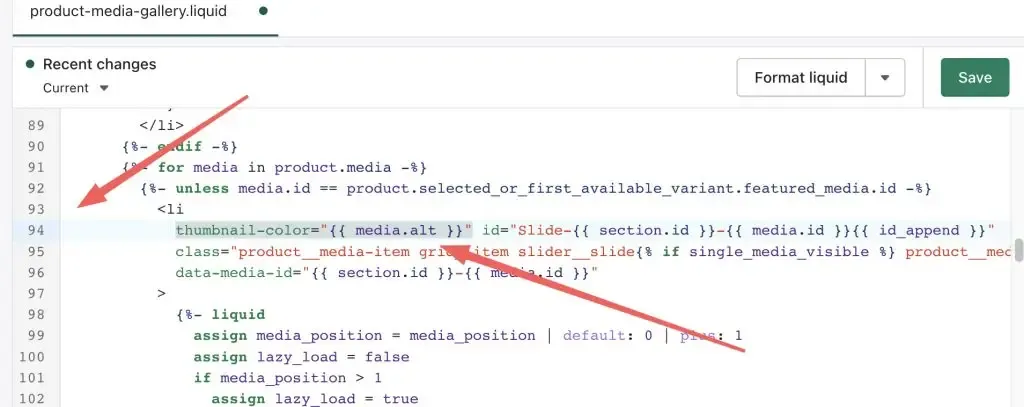
Add thumbnail-color=”{{ media.alt }}” as shown in the screenshot below in product-media-gallery.liquid:
Line no.94 – product-media-gallery.liquid (Dawn 8.0.0)
Line no.94 – product-media-gallery.liquid (Dawn 11.0.0)
thumbnail-color="{{ media.alt }}"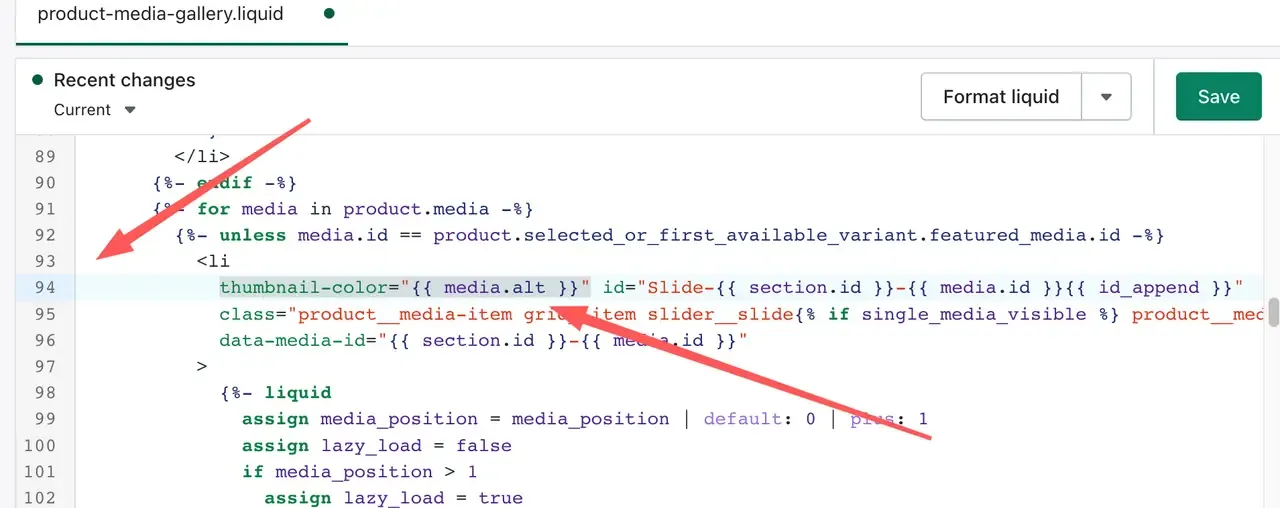
Add alt text on all product media gallery – Third step:
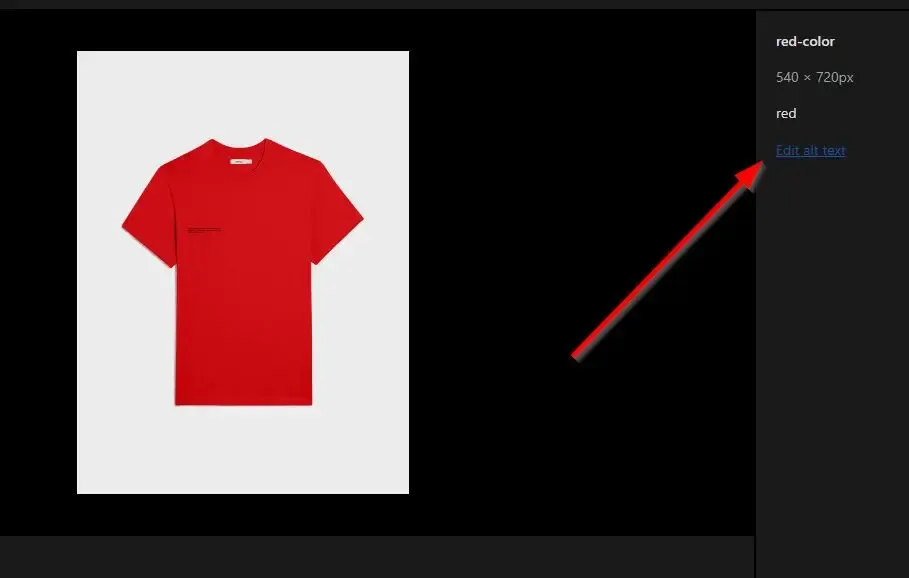
Now the second step is to Alt Text as per the color variation of your product.
Dashboard -> Products -> Edit Product
On the Edit Product screen, you will see the Media section just like the screenshot below:
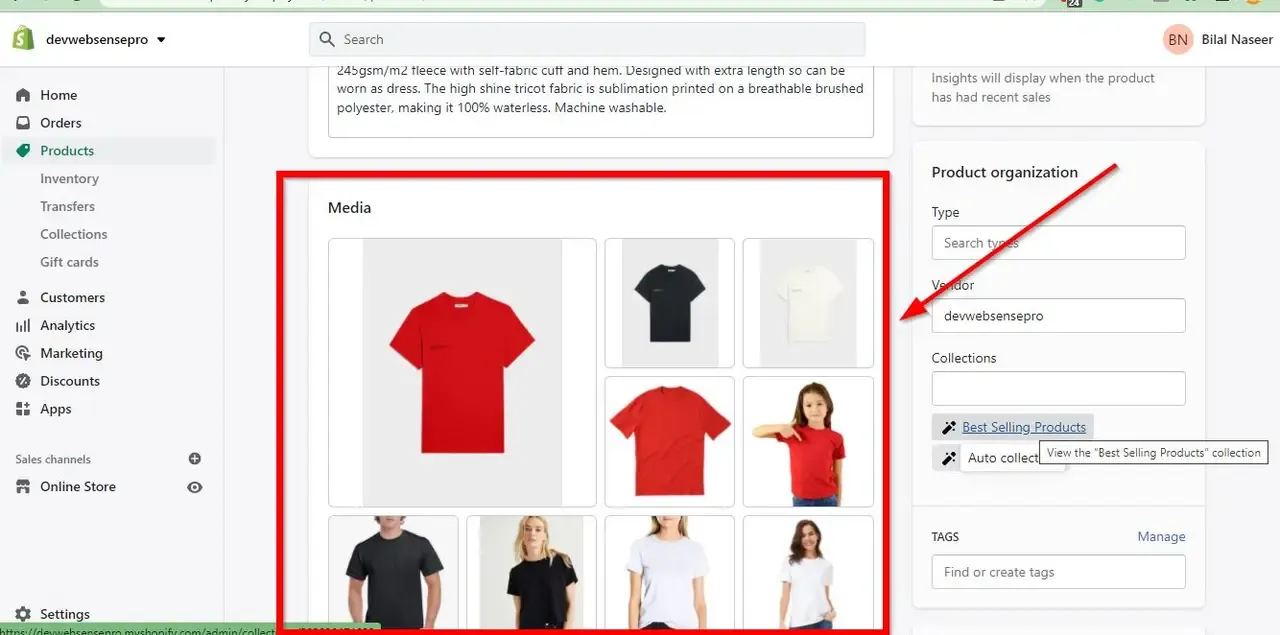
Click on all the media images and add Alt Text as per the screenshot below:
Add JS code in global.js – Fourth step:
Now edit “global.js” file and add this.filterMedia();
Line no. 769 (Dawn 6.0.2)
Line no. 769 (Dawn 7.0.0)
Line no. 813 (Dawn 8.0.0)
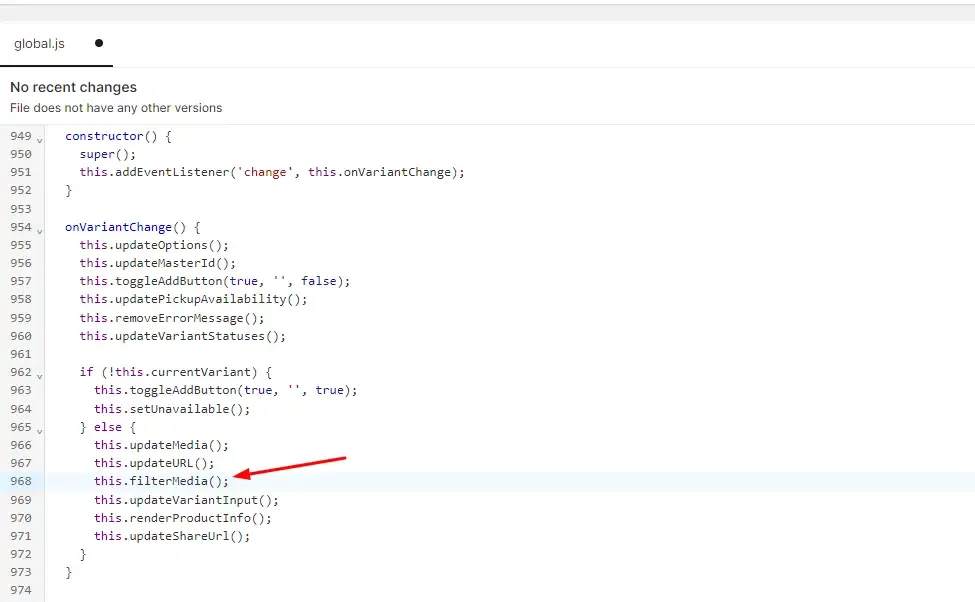
Now add the following JS function in “global.js” file.
Line no. 774 for Dawn 6.0.2
Line no. 778 for Dawn 7.0.0
Line no. 821 for Dawn 8.0.0
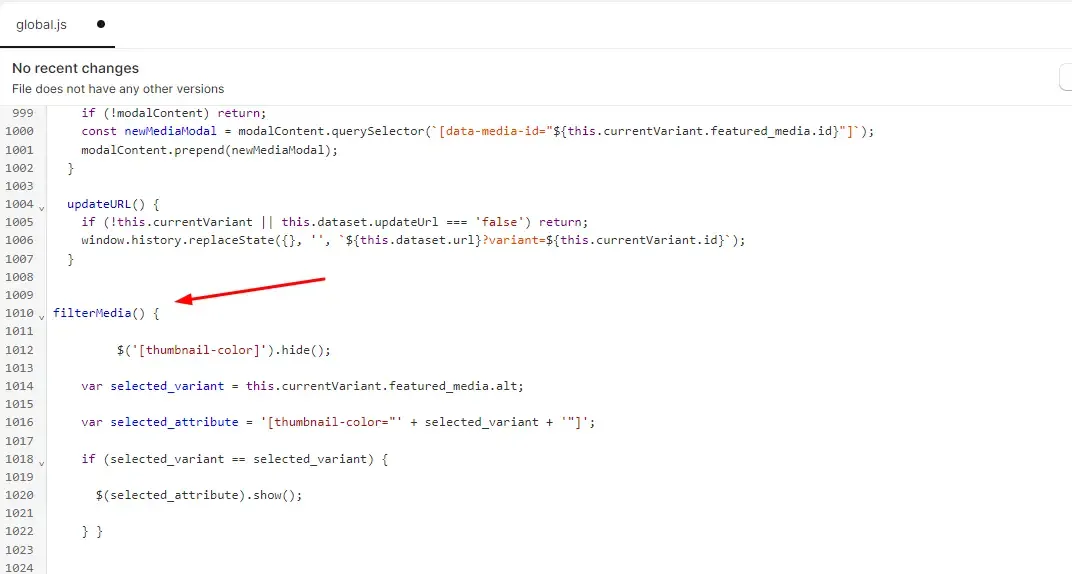
filterMedia() {

         $('[thumbnail-color]').hide();

    var selected_variant = this.currentVariant.featured_media.alt;

    var selected_attribute = '[thumbnail-color="' + selected_variant + '"]';

    if (selected_variant == selected_variant) {

      $(selected_attribute).show();

    } }
Make sure to include jQuery on your Shopify theme. Once done you should be able to see only selected variant images.
Make it work when on page load
Add the below code on the same line where you added thumbnail-color=”{{ media.alt }}” in the second step.
{% if product.selected_or_first_available_variant.featured_media.alt != blank and product.selected_or_first_available_variant.featured_media.alt != media.alt %}style="display: none"{% endif %}