![How to Install Any Claude Skill From GitHub [Step-by-step] - Beginner Tutorial](/_astro/How%20to%20Install%20Any%20Claude%20Skill%20From%20GitHub%20_Step-by-step_%20-%20Beginner%20Tutorial.Cgks_FcS_1swru6.webp)
.Bktem256_23EEnI.webp)
.rrgOIsSz_Z2n0to0.webp)
If you’re already using Anthropic’s Claude Chat but feel confused about Claude Cowork, this guide will make it simple.
Claude Cowork is basically your AI desktop assistant for real work automation not just chatting. You can manage files, run tasks, connect tools, and even build mini workflows.
Let’s break it down step-by-step in a clean, beginner-friendly way.
Step 1: Install Claude Cowork (Important)
Claude Cowork is NOT available in browser (Claude.ai).
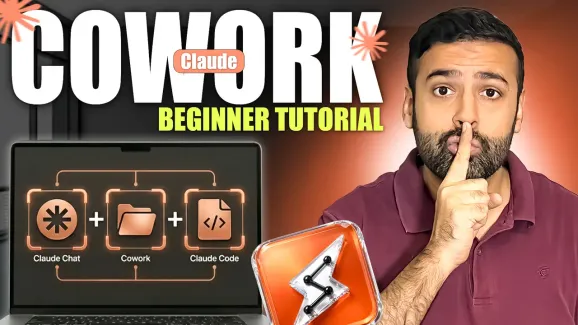
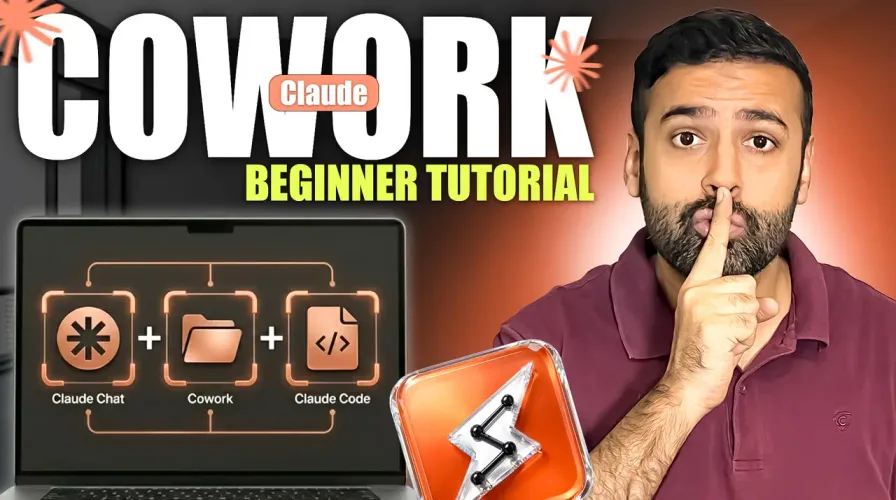
You must install the desktop app, where you’ll see:
- Chat
- Cowork
- Code
👉 Cowork only works inside the desktop environment.
Step 2: Create a Project (Your Workspace)
Inside Cowork, everything starts with a Project.
A project lets you:
- Access local folders
- Manage files
- Run AI tasks on your data
How to create:
- Click New Project
- Select “Start from scratch”
- Name your project (e.g., AI Playground)
- Choose or create a folder on your desktop
- Add safety instructions (e.g., “Don’t delete files without permission”)
💡 Each project has its own memory and context, so tasks don’t mix.
Step 3: Schedule AI Tasks (Automation Mode)
One of the most powerful features in Claude Cowork is Task Scheduling.
You can automate things like:
- Slack updates via Slack
- Reports
- File processing
- Notifications
How it works:
- Click Schedule → New Task
- Define task name & description
- Choose project
- Select AI model:
- Opus (powerful, expensive)
- Sonnet (balanced)
- Haiku (fast & cheap)
- Set frequency:
- Hourly
- Daily
- Weekly
⚠️ Your app must stay open for scheduled tasks to run.
Step 4: Live Artifacts (Mini AI Apps)
Claude Cowork can generate live artifacts basically mini web apps inside the workspace.
Example use cases:
- Slack dashboards
- YouTube analytics
- File explorers
It can connect tools like:
- GitHub
- Slack
- YouTube analytics tools (e.g., vidIQ)
Step 5: Dispatch (Control from Phone)
“Dispatch” lets you control your Cowork setup from your phone.
You can:
- Ask AI to check emails
- Access Shopify store
- Run tasks remotely
Perfect when your laptop is not in front of you.
Step 6: Customize (Connectors, Skills & Plugins)
Claude Cowork becomes powerful when you customize it:
🔗 Connectors
Connect apps like:
- GitHub
- Slack
- Shopify
- WordPress
Example: Pull data directly from tools.
Skills
Skills = specific instructions for tasks.
Example:
- “Create Figma button designs”
- “Format reports automatically”
Plugins
Plugins = combination of skills or roles.
Example:
- Marketing Assistant
- Data Analyst
- Designer Agent
Think of plugins as AI job roles.
Step 7: Global Instructions (Safety Rules)
You can set system-wide rules like:
- Never delete files without confirmation
- Always ask before editing data
This prevents accidental damage.
Step 8: Claude Cowork vs Chat vs Code
Claude Chat
- Good for conversations
- File limits (around 20 attachments)
- No deep system access
Claude Code
- Built for developers
- Works in terminal or UI
- Powerful but technical
Claude Cowork
- Best for beginners + automation
- File access + workflows + scheduling
- Desktop-based AI assistant
Final Example Workflow
In the video, a real test shows Cowork:
- Splitting a PDF into 13 files
- Creating an Excel sheet from PDF content
- Connecting Chrome to browse Upwork jobs
It even interacts with:
- Upwork
- Google Chrome
That’s real AI automation in action.
Final Thoughts
Claude Cowork is not just a chatbot it’s a desktop AI workflow engine.
If you’re into:
- Shopify
- Freelancing
- Digital agencies
- Automation
- Content creation
Then this tool can seriously boost your productivity.