![How to Install Any Claude Skill From GitHub [Step-by-step] - Beginner Tutorial](/_astro/How%20to%20Install%20Any%20Claude%20Skill%20From%20GitHub%20_Step-by-step_%20-%20Beginner%20Tutorial.Cgks_FcS_1swru6.webp)
.Bktem256_23EEnI.webp)
.rrgOIsSz_Z2n0to0.webp)
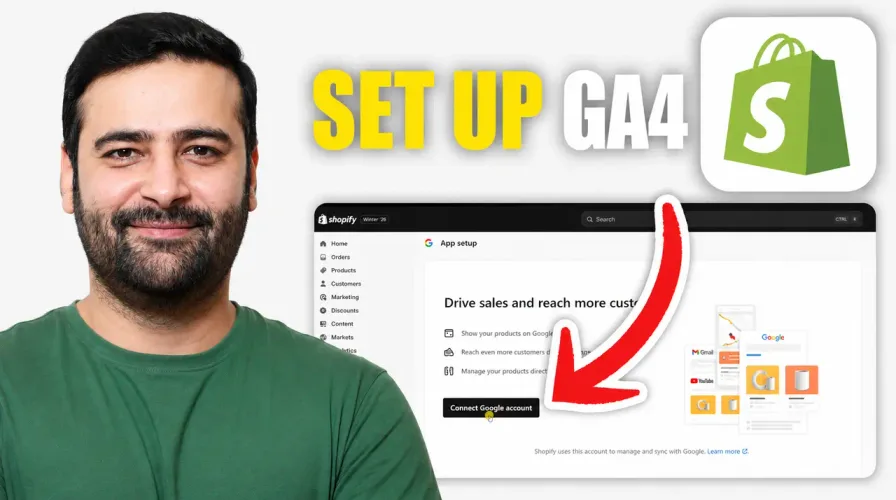
Ever feel like your Shopify Analytics numbers just don’t add up – especially compared to what your Facebook Ads dashboard is telling you? You’re not alone. It’s one of the most common issues Shopify merchants run into, and the fix is simpler than you think: connect Google Analytics 4 (GA4) to your store.
Here’s the good news – you don’t need a developer, you don’t need to pay for anything, and it takes less than 10 minutes.
Why Add Google Analytics to Shopify?
Shopify’s built-in analytics is great, but it only tells half the story. Adding GA4 lets you:
- Cross-check Shopify data against Google Analytics for accuracy
- Get a clearer picture of what’s actually driving conversions
- See real-time visitor behavior, traffic sources, and retention
- Make smarter marketing decisions with two reliable data sources instead of one
Step-by-Step: How to Set Up GA4 in Shopify
Step 1: Find the Google & YouTube app In your Shopify admin, search for “Google and YouTube”. If it’s not visible, search for it directly in the Shopify App Store – it’s a free, built-in app.
Step 2: Install and connect your Google account Click Install (or Open if already installed), then click Connect Google Account. Select the Gmail address you want linked to your store.
Step 3: Create a new Google Analytics account Head to analytics.google.com, click the gear icon (bottom left), and hit Create. Name your account (use your store name for clarity).
Step 4: Set up your property Add your property name, select your business details (industry and size), and choose your business objectives – like understanding traffic or driving sales.
Step 5: Accept terms and create your property Agree to Google’s terms, click Create, and when asked to choose a platform, click Skip for now.
Step 6: Link GA4 back to Shopify Go back to your Shopify store, refresh the page, and toggle the Google Analytics slider. Click Get Started, then search for the account you just created.
Step 7: Match your IDs Confirm your Account ID and Measurement ID match what’s shown in the dropdown, then click Continue.
Step 8: You’re connected! Head to the Analytics tab in Shopify to start viewing real-time reports – visitors, traffic sources, retention rate, and more, completely free.
Bonus Tip
Once connected, skip the email notifications unless you actually want tips from Google – it’s optional and won’t affect your tracking.
Useful Free Resources
- 🔗 Free Schema Markup Tool: seoschemamarkup.com
- 🔗 Start Your Shopify Store for $1/Month: shopify.pxf.io/XYRLdX
- 🔗 Free Shopify Sections (GitHub): github.com/websensepro1/free-shopify-sections
Final Thoughts
Connecting GA4 to Shopify is one of the easiest, highest-impact things you can do as a store owner. It costs nothing, takes minutes, and gives you the real data you need to grow smarter. If your numbers have ever felt “off,” this is the fix.
Want the full visual walkthrough? Watch the step-by-step video tutorial for a screen-by-screen setup guide.